User guide
Getting started with AVC: calculator, formulas, categories, data tables, workflows and business models — illustrated by application screenshots.
Looking for technical documentation?
This guide covers application usage. For MCP integration (Claude Desktop, ChatGPT, API), see the MCP documentation.
Actuarial calculator
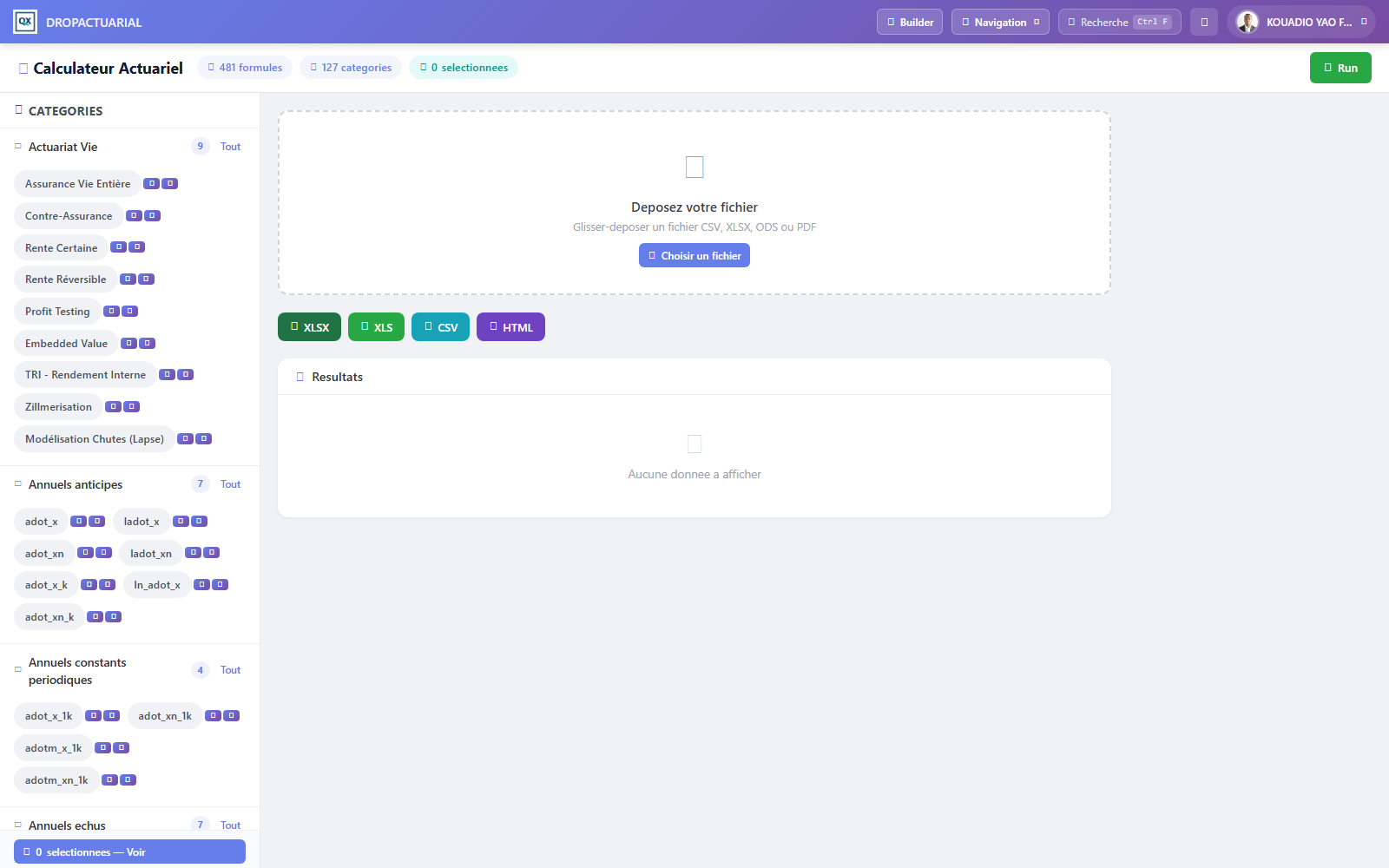
The calculator is the main entry point. It provides the full formula catalog organized by category in the left panel.
- Drop a file into the drop area (CSV, XLSX, ODS or PDF), or use “Choose a file”.
- Select formulas in the left panel's categories. The counter below shows the number selected.
- Run the calculation with Run, then export results to XLSX, XLS, CSV or HTML.
Formula and button management
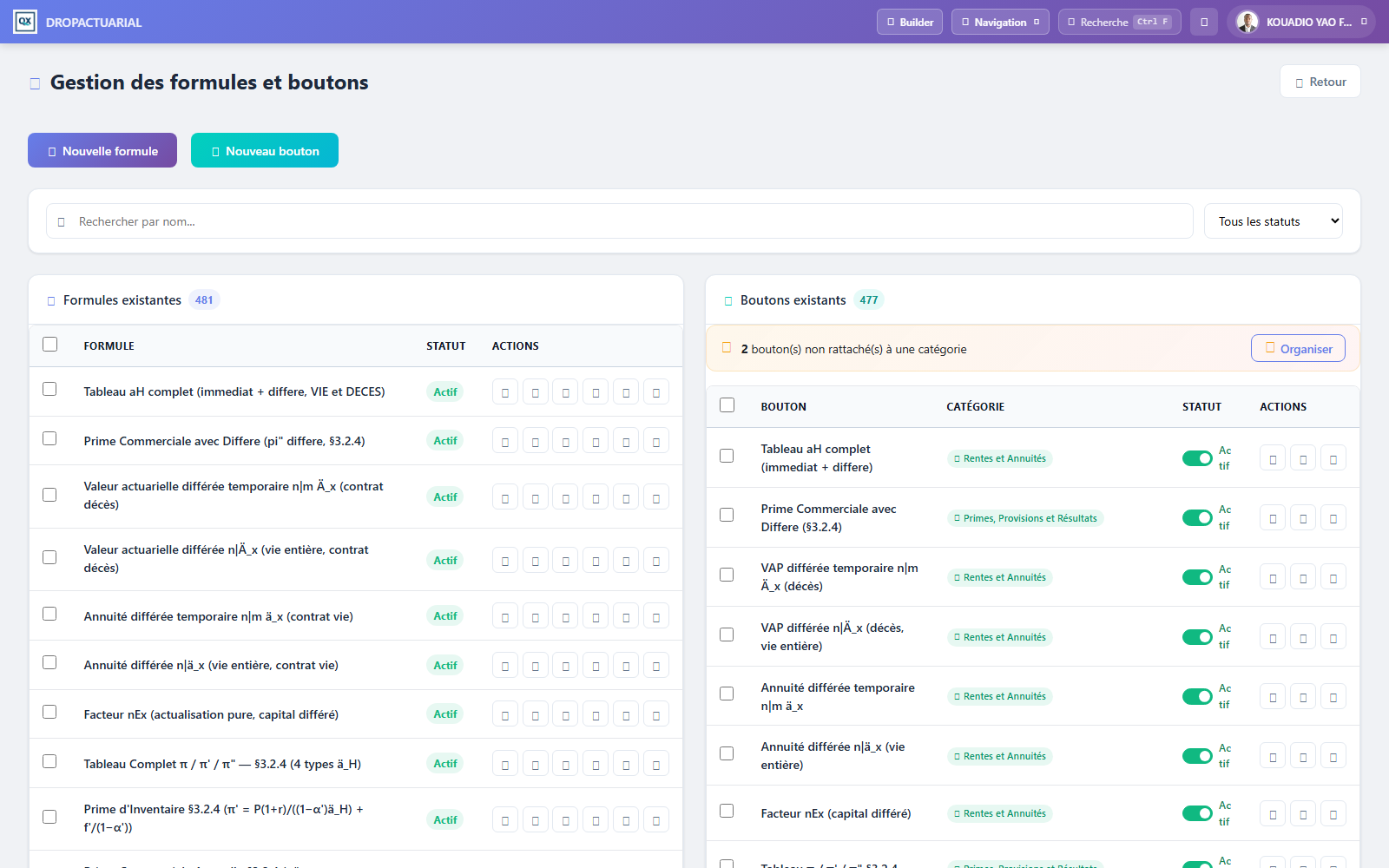
This page centralizes creation, editing and deletion of formulas and their interface buttons. A formula contains calculation code; a button exposes it in the calculator and may link to one or more categories.
Category tree
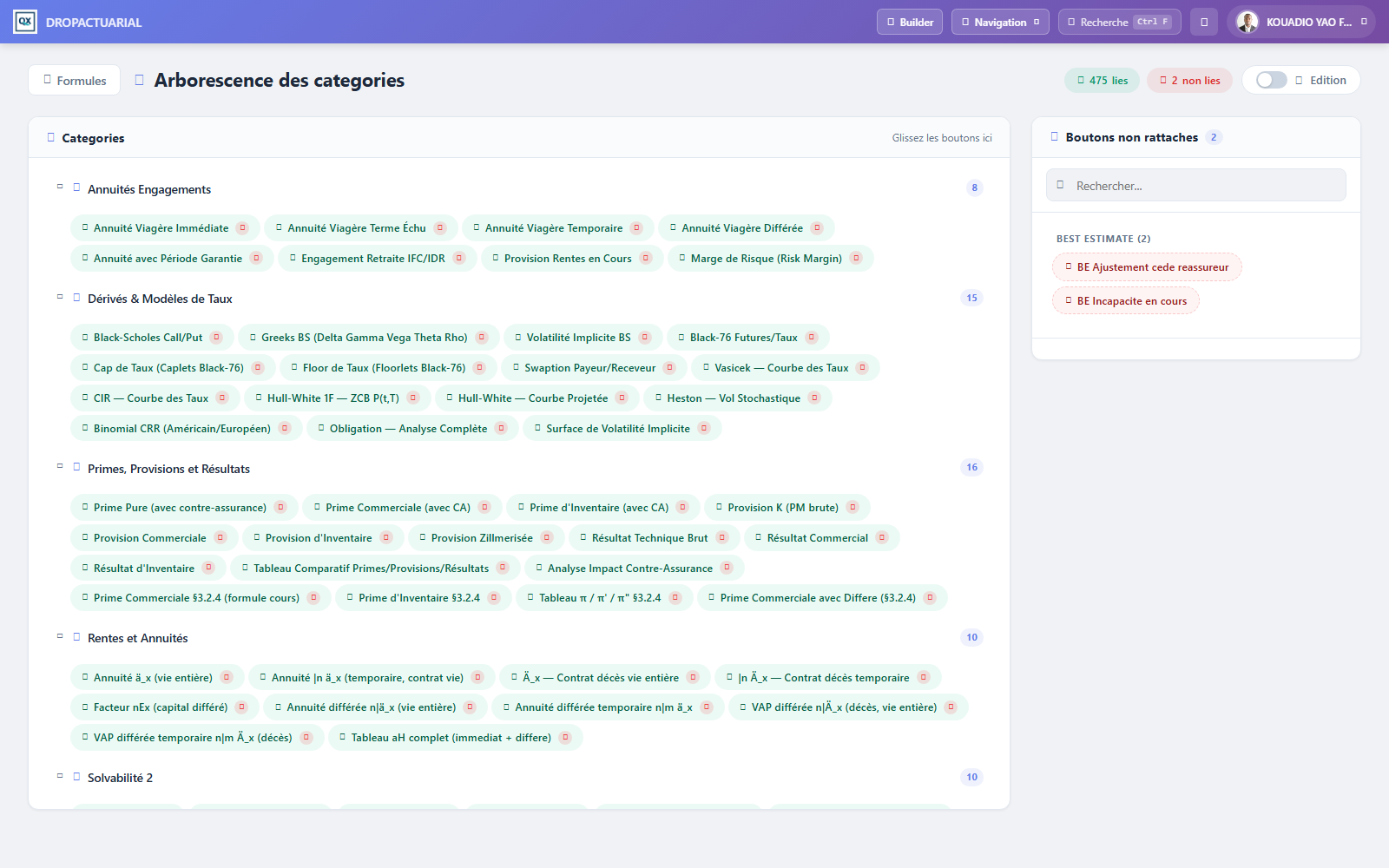
Organize buttons in a category tree by dragging and dropping. The right panel lists unlinked buttons: they stay hidden in the calculator until classified.
Top-right counters show linked and unlinked button counts; the “Editing” switch enables changes to the tree.
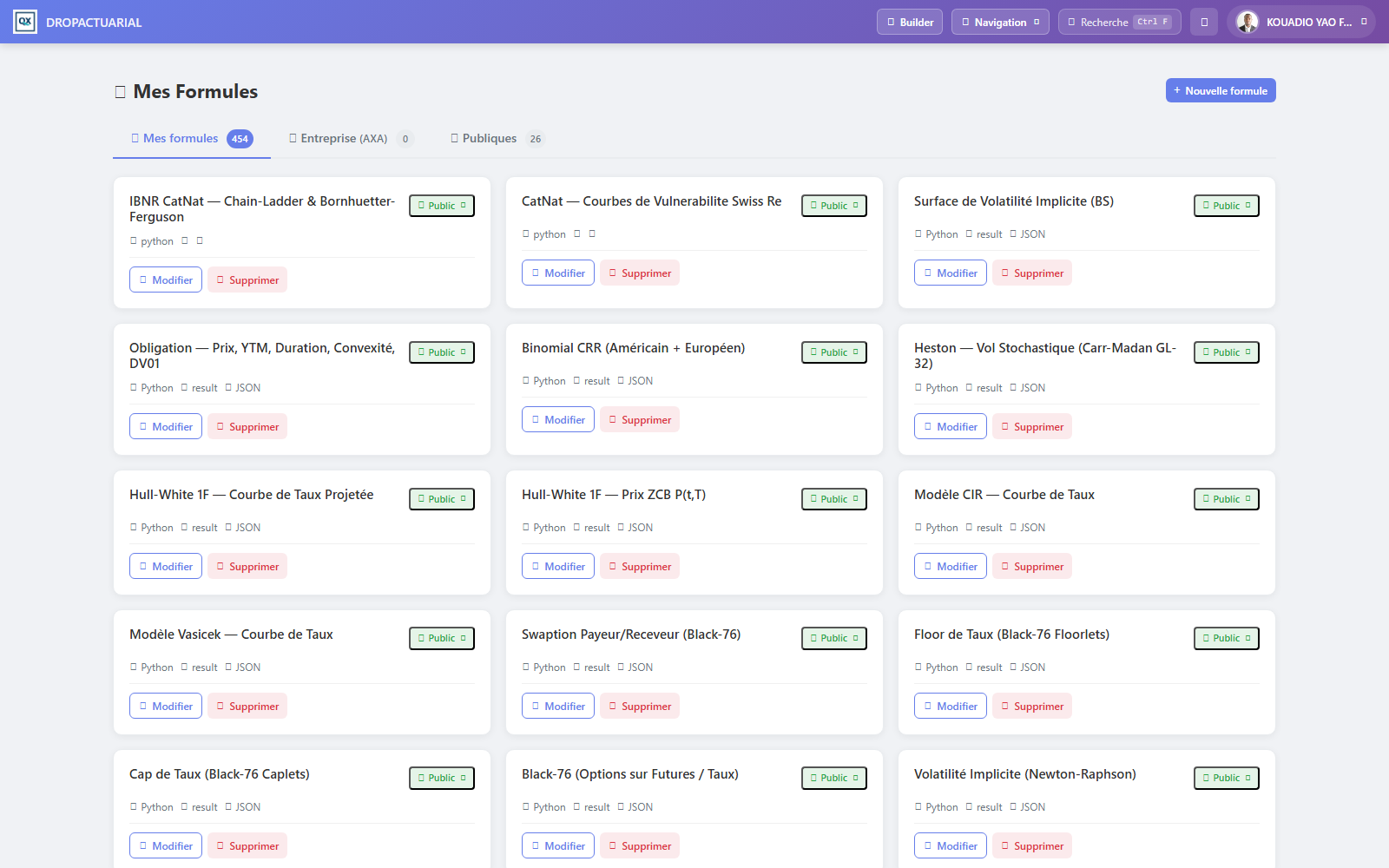
My formulas
Find your personal formulas, company-shared formulas and public catalog formulas. Each may be edited, duplicated or have its visibility changed (private, company, public).
Data tables
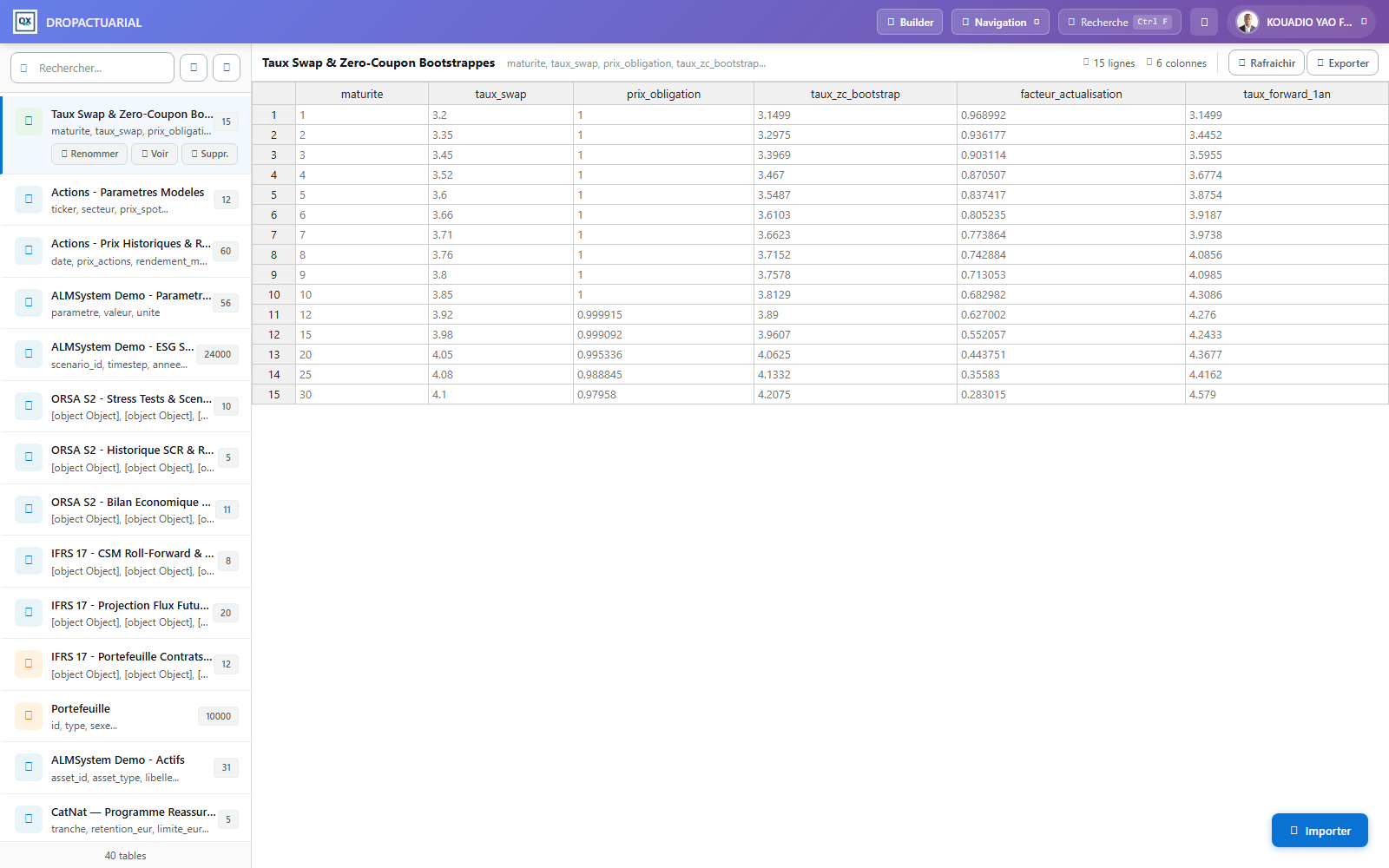
Import and manage data tables (rates, assets, portfolios, ESG scenarios, mortality tables…). Once saved, they become selectable workflow sources through the “Saved table” node.
Workflow list
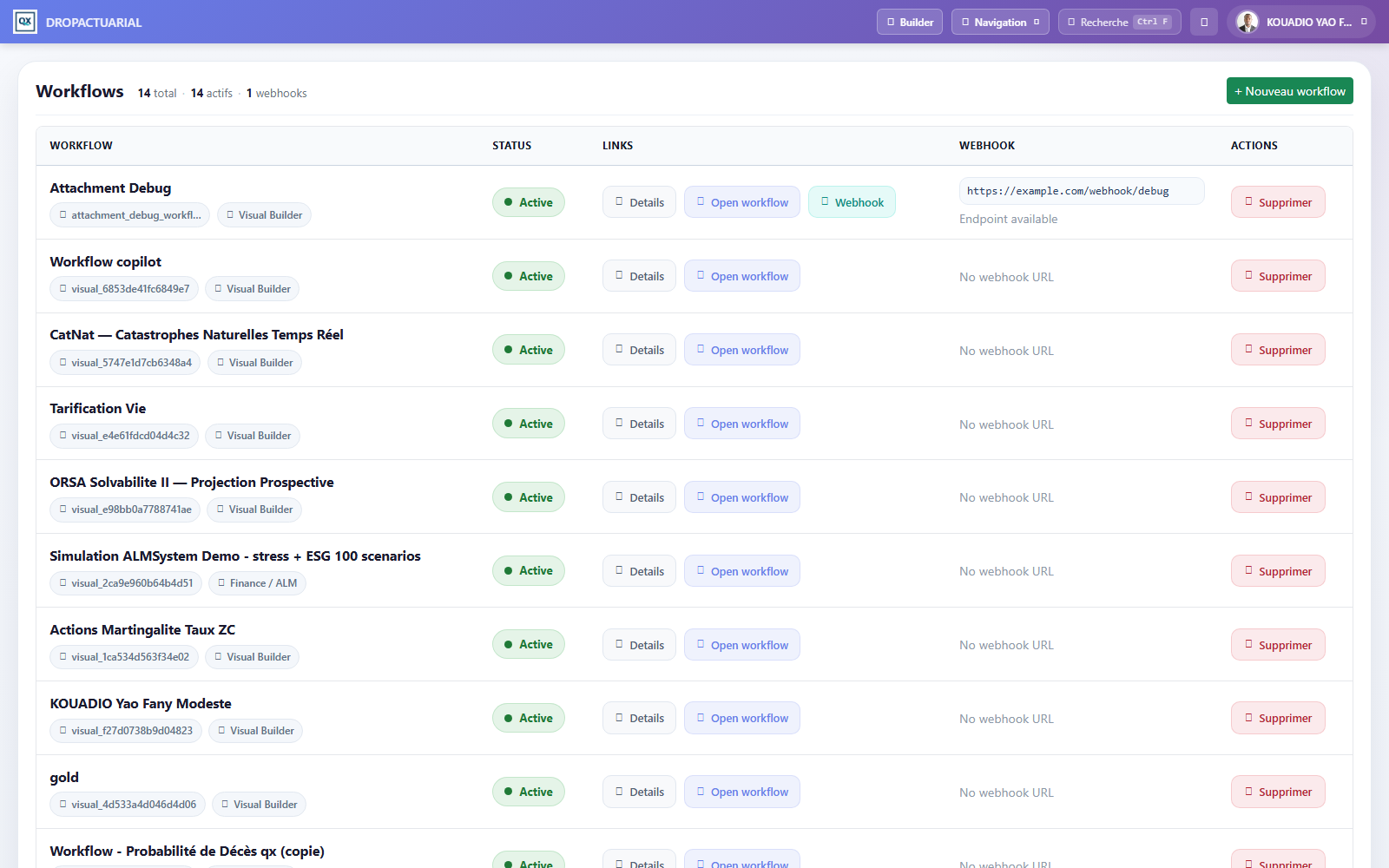
All workflows are grouped here with status (active/inactive), run count and actions: open in editor, view details, duplicate, activate/deactivate or delete.
Visual workflow editor
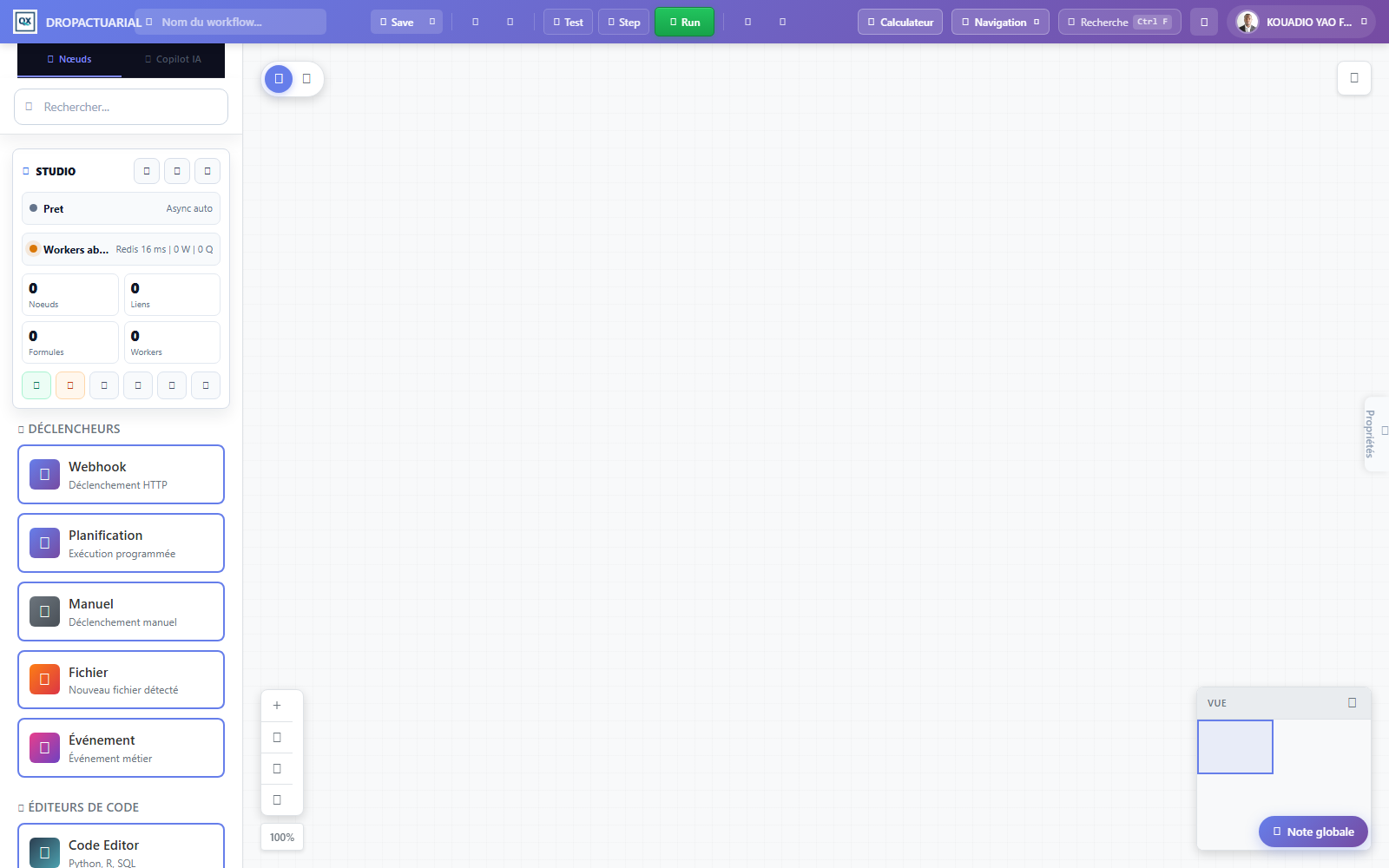
Build pipelines by dragging from the left node library: triggers, data sources, formulas, logic and outputs. Connect nodes on the canvas to define execution order.
The STUDIO panel continuously shows the current workflow state: counts of nodes, links, formulas and available workers. The “Properties” panel on the right configures the selected node.
The main node families
| Family | Examples | Role |
|---|---|---|
| Triggers | Webhook, Schedule, Manual, File, Event | Define what starts the workflow. |
| Data | Data import, Saved table, HTTP request | Provide datasets to the workflow. |
| Formulas | Formula, Code editor (Python) | Apply actuarial calculations to data. |
| Logic | Condition, Loop, Assumptions, Validation | Direct execution and control quality. |
| Exits | Excel export, PDF export, Report, Visualization, Notification | Return results. |
Test a workflow
Before publishing or scheduling a workflow, test it from the editor toolbar. Three execution modes are available, from safest to most complete.
| Button | What it does | When to use it |
|---|---|---|
| Test | Validates workflow structure, then simulates execution without modifying your data. | After each change, to quickly check that the pipeline works. |
| Step | Runs the workflow node by node, with validation between steps. | To locate precisely the step producing an unexpected result. |
| Run | Runs the entire workflow and records the execution in history. | Once the test succeeds, to produce actual results. |
What the test checks
The test starts with a structure check. A workflow is considered valid if it meets either of these conditions:
- it has at least one trigger (webhook, schedule, manual, file or event) and at least one output (export, report, visualization, notification, email, database save…);
- or it is a calculation workflow: at least one data source combined with at least one formula. No trigger or output is required, as these workflows legitimately end with a calculation.
If validation fails, the error gives the cause: empty workflow, orphan node or missing trigger and output. Simulation runs only after successful validation.
Example: test a calculation workflow
Consider the most common case: a workflow applying a formula to a data table.
- Add a “Saved table” node and select a table (for example a zero-coupon rate table).
- Add a “Formula” node, choose the formula to apply, then connect the table to the formula.
- In the formula Properties panel, map each required variable to a table column.
- Click on Test : the test report shows each formula's input data, applied formula and calculated result.
- Correct variable mapping if a result is empty or inconsistent, then rerun the test.
- Once the result is correct, run Run for the actual execution.
Good instinct
Test with a deliberately small table before connecting a full dataset: mapping errors are easier to spot and testing stays instant.
Good to know
The test simulates execution without writing data: output nodes (export, email, database save) have no real effects. To validate an output end to end, use Run and check the result in the run history.
Publish result
After a successful run, the button Publish turns the latest run's result into a viewable report shareable by link.
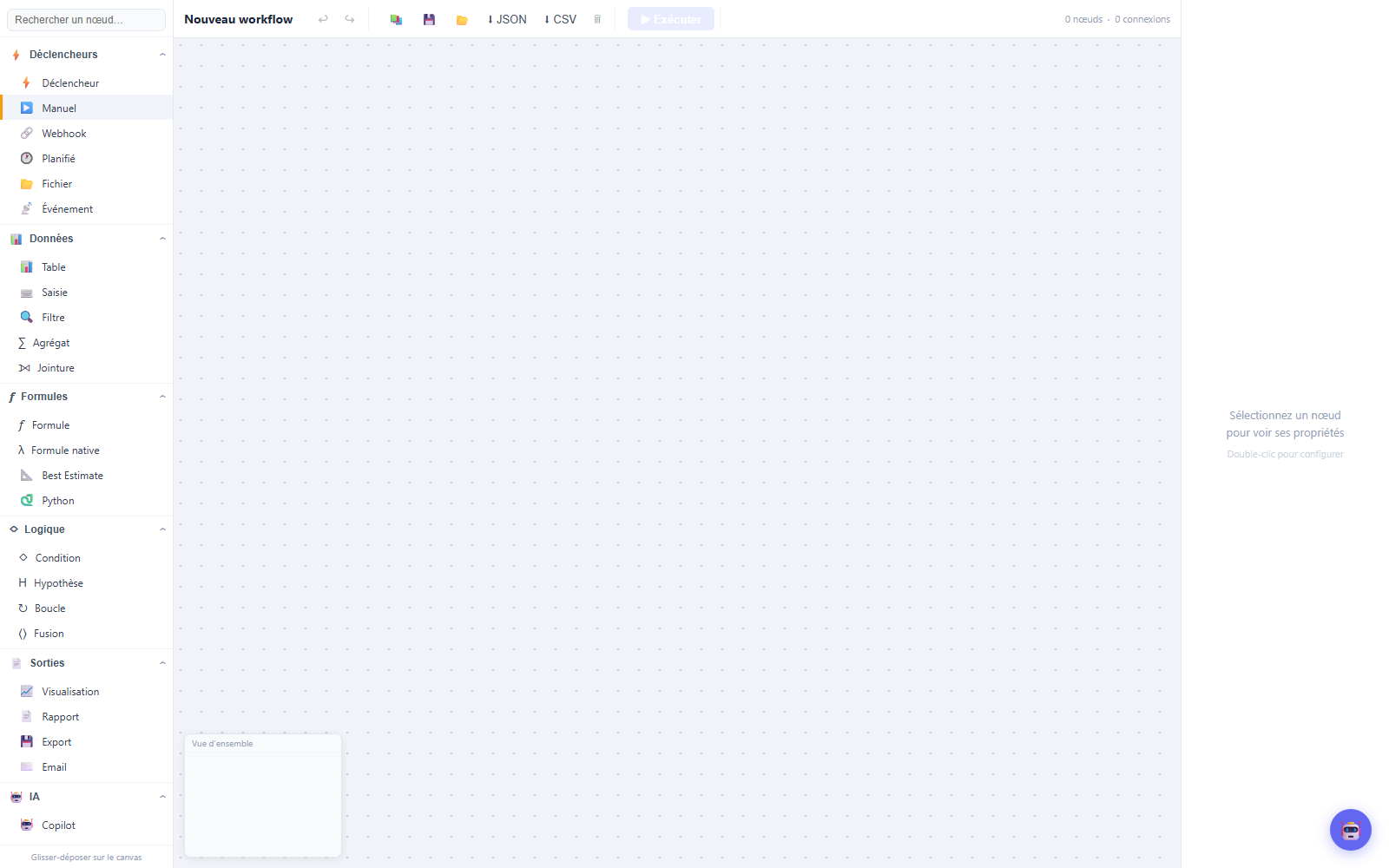
Workflow Builder V3
Next-generation workflow editor: node library by category (triggers, data, formulas, logic, outputs and AI), more responsive canvas and Copilot integration.
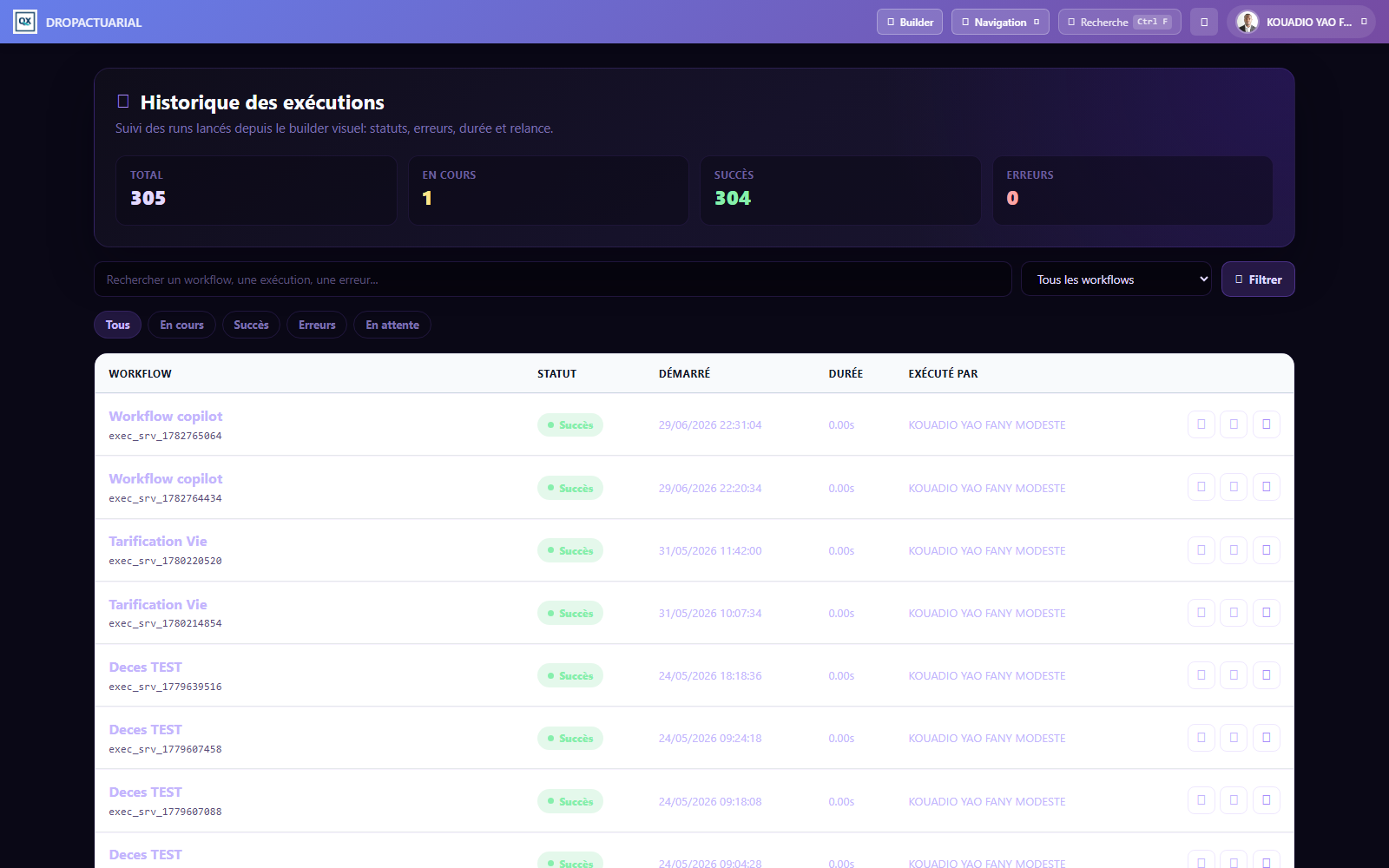
Run history
Track every editor-launched run: status, duration, author and detailed log. On error, the log identifies the failing node and lets you rerun after correction.
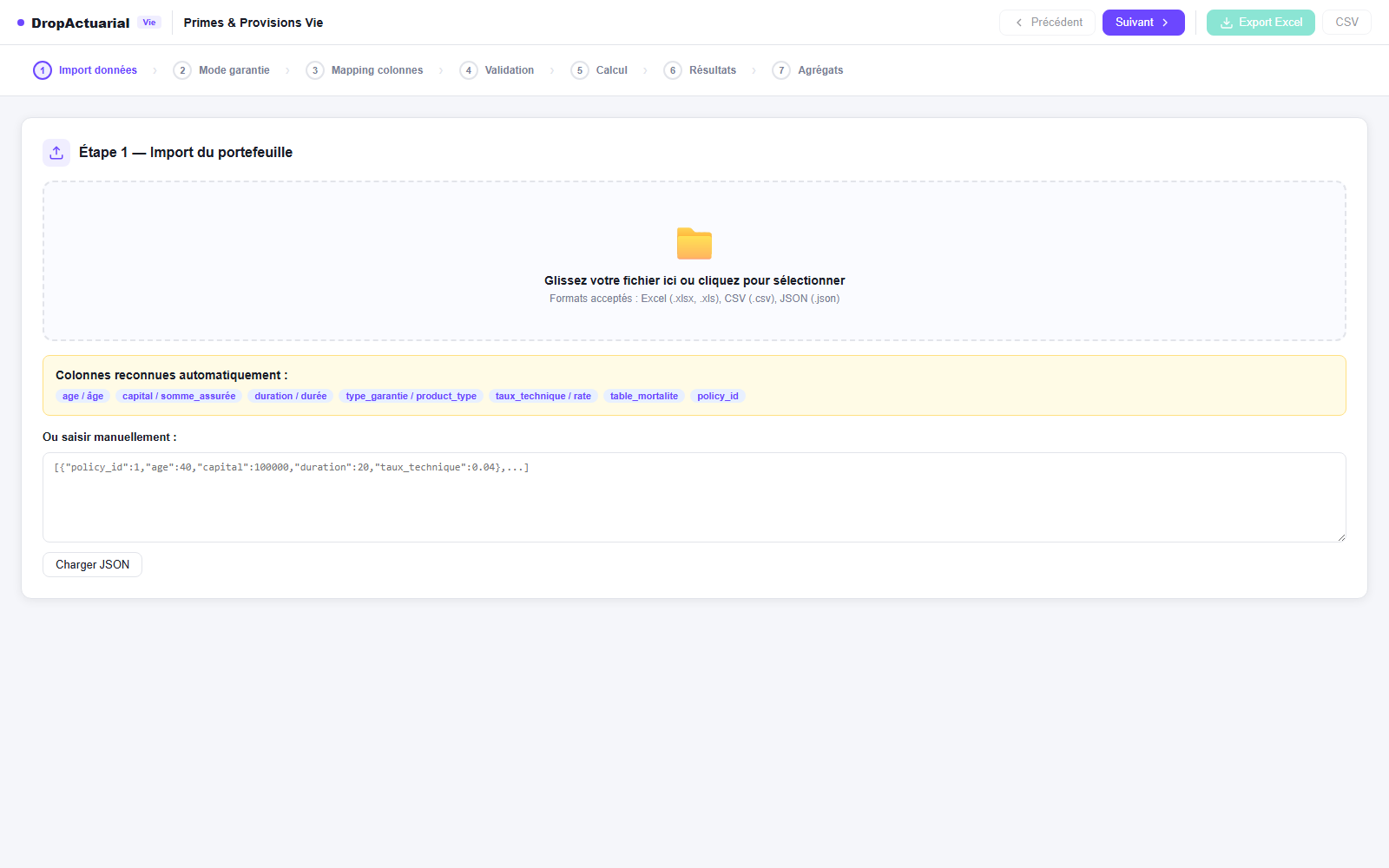
Life premiums & reserves
Life insurance business model in 7 guided steps: portfolio import, coverage mode, column mapping, validation, calculation, results and aggregates.
On import, standard columns (age, capital, duration, coverage type, technical rate, mortality table, policy ID) are recognized automatically. Results export to Excel or CSV.